If you would like to manually close out your transactions or set your own close time, you may contact Customer Service to change your Closing Settings.
- Merchants choosing to manually close their transactions must close their transactions prior to 10 PM ET each day to receive next day funding. Failure to close will delay funds until those transactions are closed out. We recommend closing transactions within 24 hours to prevent funding delays.
- Manual Close with Set Close Time - Set a close time and your device will automatically close your transactions at that time. If you have a set close time entered, you will see your closing settings change to Auto Close with your set close time listed. You will still be able to manually close your transactions at your discretion.
- This is the recommended setting for Payanywhere Smart Solution merchants who would prefer a closing process that resembles Auto Batch on a traditional terminal.
- If you are using a Payanywhere Smart Solution, you are able to print your closing (batch) report from your device after your transactions are closed. You may also reprint your closing report at any time by heading to Menu → Print Closing Report. Scroll down for details on Automatically Print Closing Report options, as well as how to print a Summary Report and Sales Detail Report.
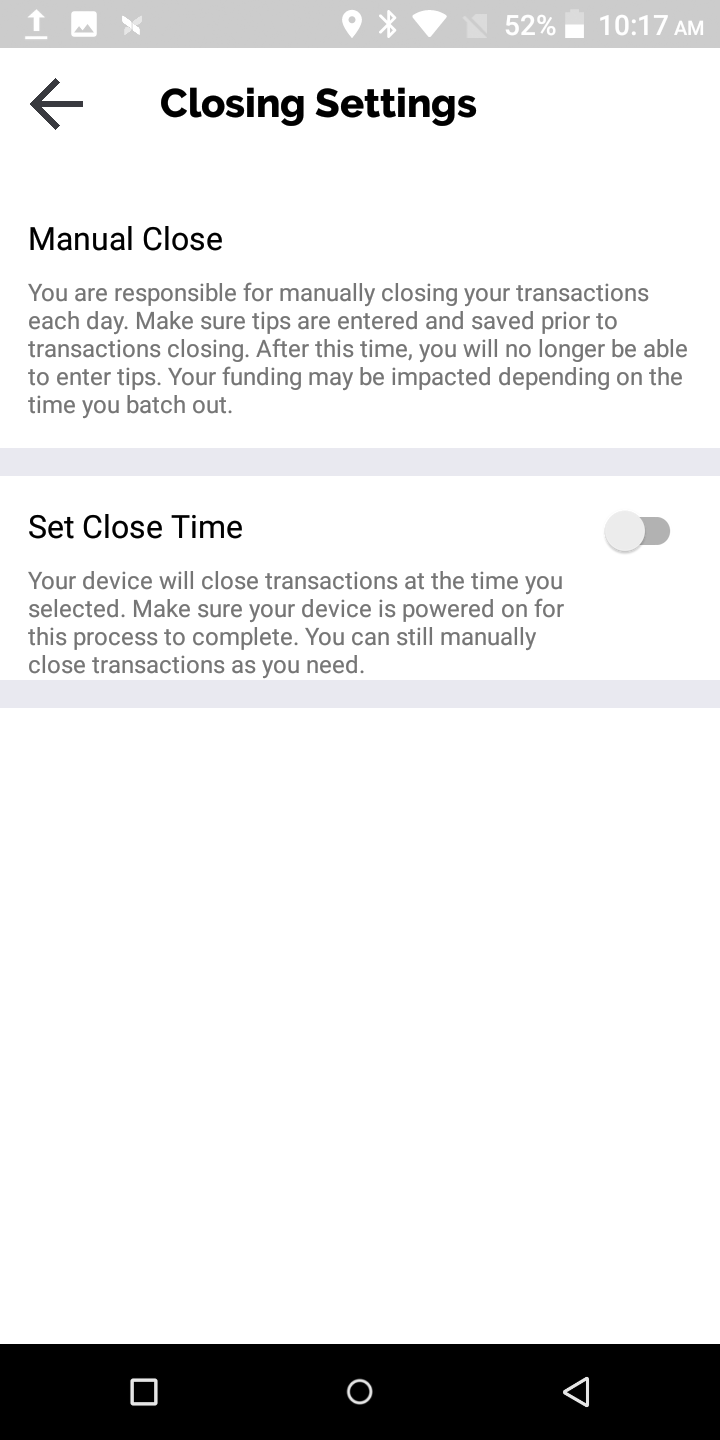
Manual Close Employee permission notes:
- Managers need to have all Activity permissions enabled to adjust tips and close transactions.
- Owner, Admin, and Manager roles will see all transactions processed on a device.
- Owner, Admin, and Manager roles can adjust tips on all transactions.
- Cashiers can only see their transactions on a device.
- Cashiers can only adjust tips on their own transactions.
- In Payments Hub, Owner, Admin, and Manager roles can see and adjust tips on all transactions for the entire account (MID), regardless of device.
Manual Close with tip adjust:
- View your open transactions, add tips, and tap Save.
- After you add your tips and save them you can no longer edit the tip amounts.
- Tap Close All Transactions and confirm you would like to close your transactions.
- Merchants using Manual Close, or Payanywhere Close with tip adjust, may also view and close their open transactions through Payments Hub.
Manual Close without tip adjust:
- View your open transactions.
- Tap Close All Transactions and confirm you would like to close your transactions.
Auto Print Closing Report (Manual Close):
- Enable Auto Print Closing Report in Payments Hub → Payment Settings → Closing Settings.
- Only Owners and Admins can update these settings. These settings will be view only for Managers and Cashiers.
- Toggle on Automatically Print Closing Report.
- This will automatically print your closing report at 6:05 am local time.
Set Close Time (Manual Close):
- Head to Settings → Closing Settings.
- In addition to Payanywhere Smart Solutions, the Set Close Time is available on iOS and Android devices as well. However, only Payanywhere Smart Solution users are able to print their closing reports.
- Toggle on Set Close Time.
- Select the time you would like your transactions to automatically begin to close in the event you choose not to manually close.
- If you have a set close time entered, you will see your closing settings change to Auto Close with your set close time listed. You will still be able to manually close your transactions at your discretion.
- (Optional) Enable Auto Print Closing Report in Payments Hub → Payment Settings → Closing Settings.
- The time that is selected for the Set Close Time will impact what time the report is printed as it overrides the default 6:05 am local time.
- Note: To allow time for the transactions to close, there may be a slight delay from the time selected for the Set CloseTime to when the report is printed.
- Ex: Set Close Time is set for 9:30 pm. This means transactions will begin to close at 9:30 pm. The closing report will automatically print around 9:45 pm.
Printed Summary Report: Payanywhere Smart Solution users also have the option to print a summary report on their device to see their transaction activity for the day, at any time. Tap Menu → Print Summary Report.
Sales Detail Report: Also available to Payanywhere Smart Solution users. Head to Menu → Transactions → Summaries and tap Print next to Sales Detail Report to print a list of all transactions processed on that device for the day.