Quick Service (QSR) theme is similar to Retail theme, but offers additional features and functionality intended to cater towards the needs of Quick Service Restaurants.
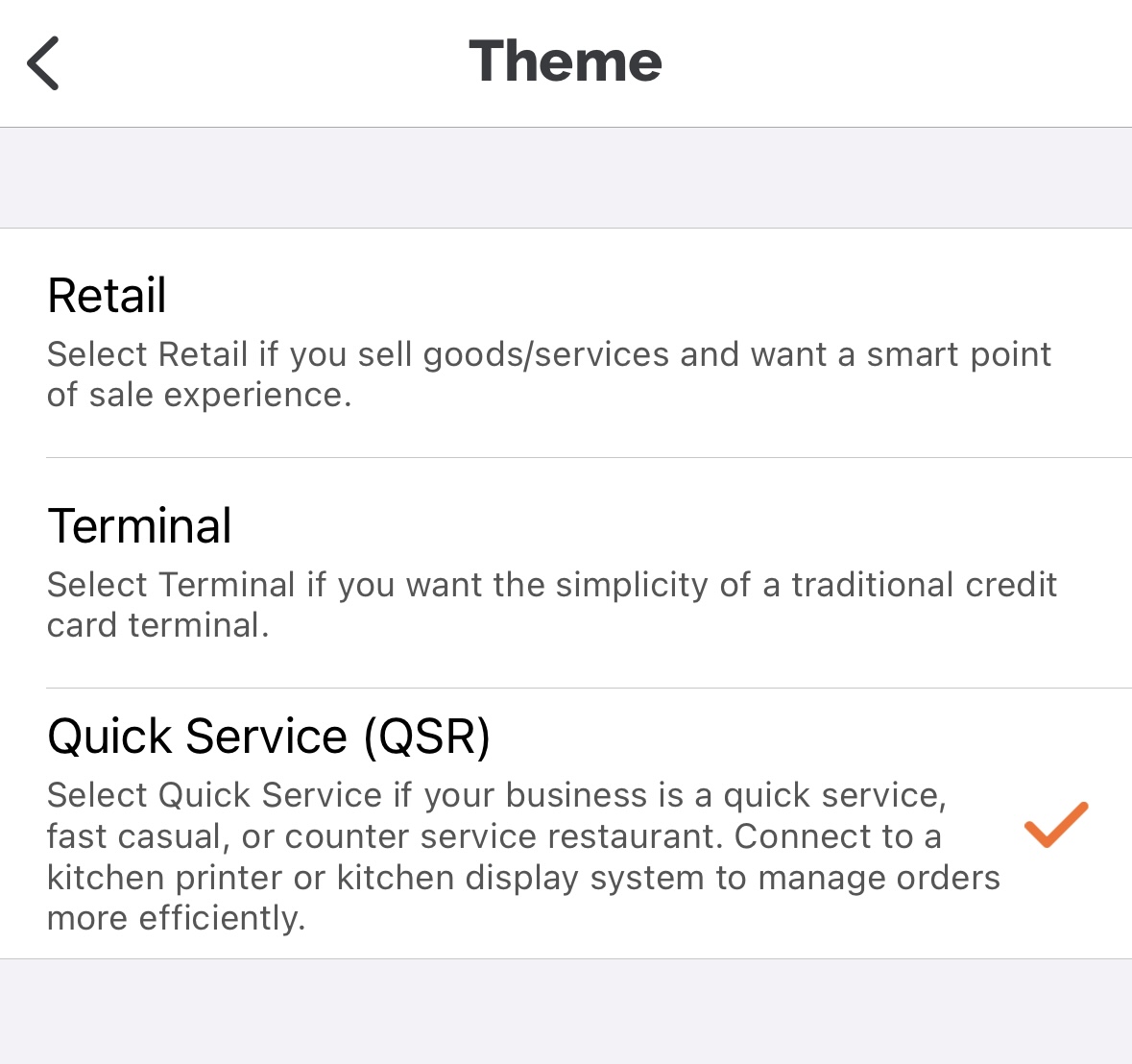
Overview of Quick Service theme:
- Connect one or multiple kitchen printers/kitchen displays (KDS) to send itemized order tickets to a kitchen, bar, or any area where ordered items are to be prepared.
- Note: Star Micronics SP742ME & SP742MW Ethernet Kitchen Printers are the only printers supported by Payanywhere for printing order tickets at this time.
- Payanywhere Smart Solutions with built-in printers may also be used to print order tickets.
- Fresh KDS (kitchen display system) requires separate hardware that is supported by the Fresh KDS app, and a Fresh KDS account (sign up here). For more information on connecting to Fresh KDS, click here.
- Assign menu (Inventory) items to the/each kitchen printer or KDS at the category level.
- Categorize orders as Dine In, To Go, or Pick Up.
- Add an order name in the cart details prior to payment.
- Printed order tickets are initiated by completing a sale or creating an open ticket/tab in the Payanywhere app.
- To switch to Quick Service (QSR) theme, head to Settings → Themes and select Quick Service.
For detailed instructions on how to use Quick Service theme, view the articles below.
- Connecting a Kitchen Printer
- Connecting to Fresh KDS
- Assigning Categories to a Kitchen Printer
- Selecting the Order Type
- Adding an Order Name
- Creating Open Tickets & Tabs
- Creating Orders for Other Employees