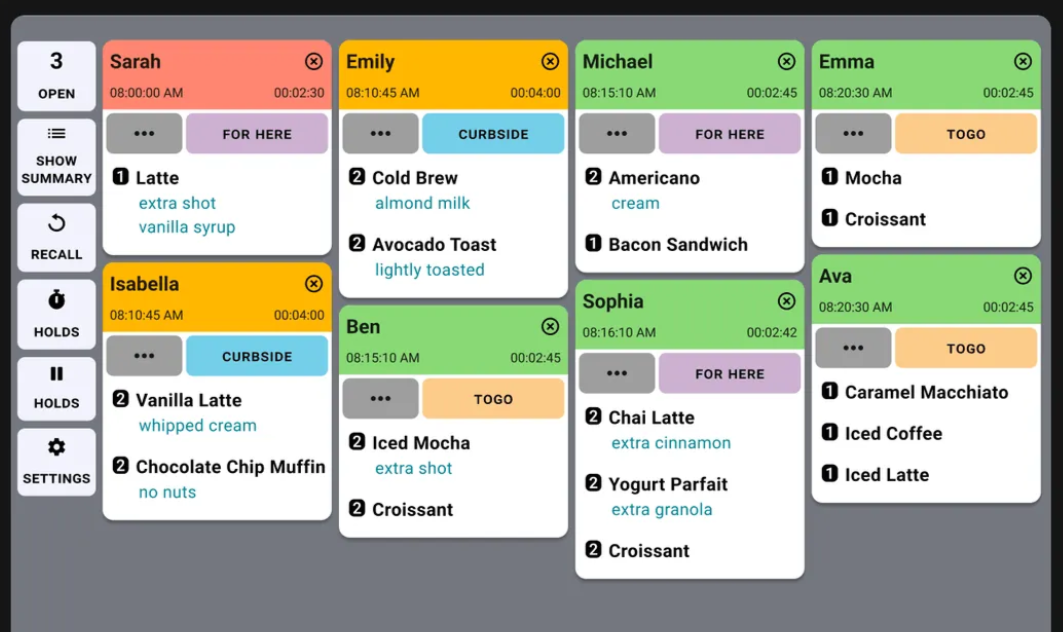
Quick Service (QSR) theme also allows you to connect a digital kitchen display system for enhanced order management through our integration with Fresh KDS.
What to know:
- Fresh KDS is a third party app that can connect to Payanywhere in QSR theme to receive and manage order tickets on a digital kitchen display.
- You will need to sign up for a Fresh account.
- Your Fresh account credentials will be used to log in to the Fresh KDS app on your kitchen display screen. For information on Fresh plans and pricing, click here.
- Fresh KDS requires hardware separate from your Payanywhere device. Fresh KDS is compatible with iOS 13+ and Android 7+ tablets.
- Click here to see recommended hardware options for Fresh KDS.
- Fresh KDS works similarly to kitchen printers in terms of connecting and sending itemized order tickets to one or multiple prep areas, but with the many added benefits of an industry leading kitchen display software.
- Note: Your Payanywhere device(s) and Fresh KDS screen(s) will need to be on the same internet network in order to connect in the Payanywhere app.
How it works:
- Log in to the Payanywhere app on your Payanywhere device and switch the Quick Service (QSR) theme under Settings → Themes.
- Download and log in to the Fresh KDS app on the device(s) you will be using for your kitchen display.
- Ensure both your Payanywhere device(s) and Fresh KDS device(s) are connected to the same internet network.
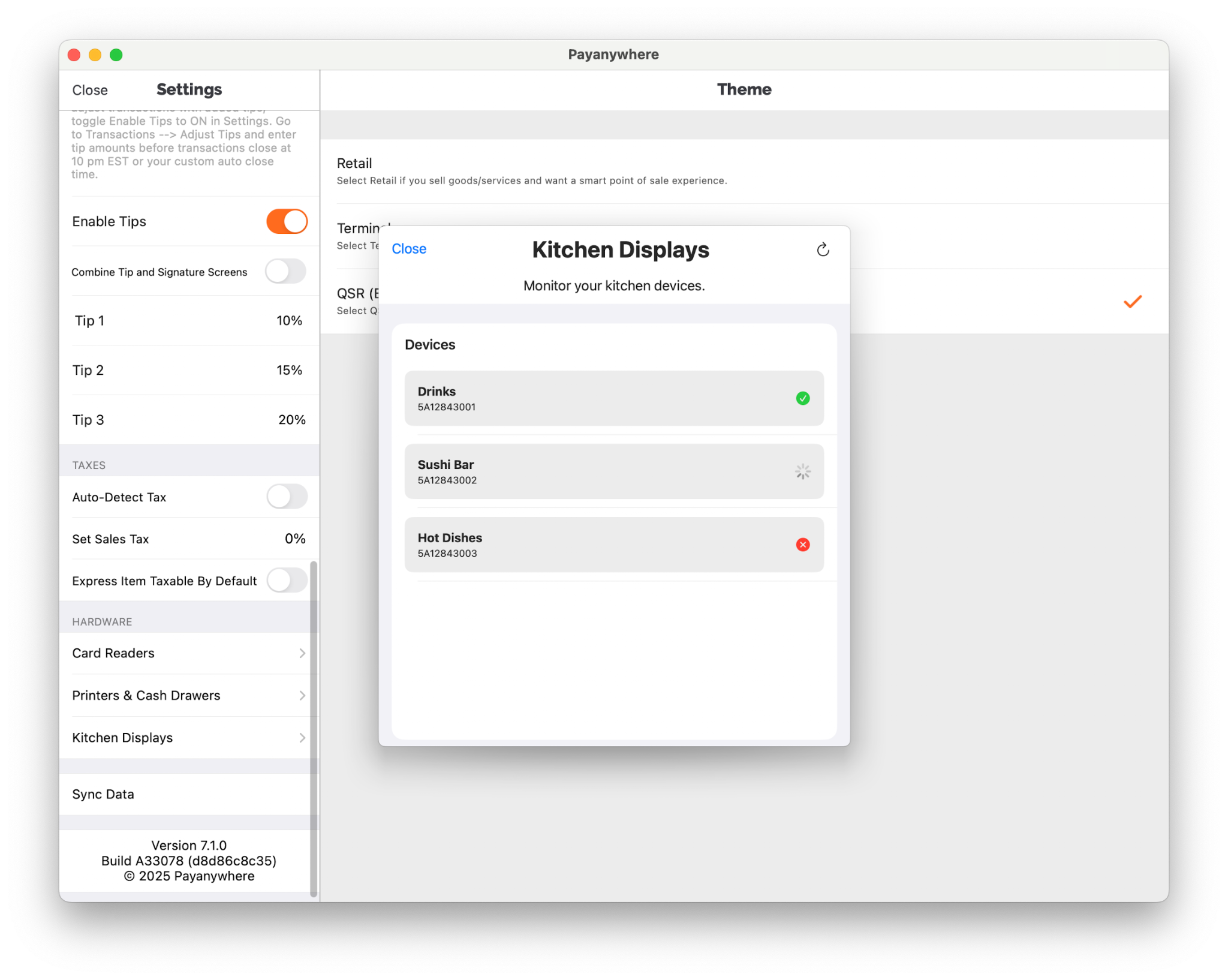
- In the Payanywhere app, head to Settings → Hardware → Kitchen Displays
- Scan for devices and select the display(s) you would like to connect to.
- You may also customize the name of your displays to label them by location (Ex: Kitchen, Bar, etc.).
- On the display device details screen, or by tapping the device options icon, choose to associate all categories for the display or select specific categories to assign to the display through Edit Mode.
- Once your display is connected to Payanywhere and all applicable categories are correctly assigned to the display, Fresh KDS will begin receiving order tickets initiated from the Payanywhere app.
- For more information on the features and functionality available in Fresh KDS, click here.
All other QSR theme features available for kitchen printers also apply to Fresh KDS. To learn more about assigning categories, selecting an Order Type, adding an Order Name, etc. check out individual QSR articles for detailed instructions.
If you have any questions about QSR theme or connecting to Fresh KDS, feel free to reach out to product@payanywhere.com.